The dock
Alt+V slides up a dock with your latest copies. Drag to paste, click to re-copy, Alt+click to grab several at once.
 A Benrisoft app · Windows
ClipBowl quietly keeps everything you copy — text, images, files — and brings it back with a tap of Alt + V. Drag any clip straight into another app, or click to paste. Screenshots and GIF capture are built in.
⌗
⚙
Everything you'd want from a clipboard manager, and nothing you wouldn't — native, quick, and quiet on your machine.
Alt+V slides up a dock with your latest copies. Drag to paste, click to re-copy, Alt+click to grab several at once.
Ctrl+Alt+S snips a region; Win+Shift+S and PrtScn are caught automatically. Every shot is saved as a real PNG.
Click any screenshot to annotate — pen, shapes, arrows, and text. Bursts of shots become a filmstrip you can drag out.
Record a region straight to a shareable GIF or MP4 that drops right into chats and drags anywhere.
Clips live as actual .txt, .png, and copied files on disk — so a copied file survives even if you delete the original.
Password-manager exclusions are respected, nothing leaves your device, and there's no account and no telemetry.
Follows your Windows theme automatically, or pin either one. Clean, modern, and calm in both.
Native WPF, zero third-party dependencies, event-driven — no polling, no background drag on your PC.
Your bowl reloads on every launch and is capped to keep it tidy. Or start each session clean — your choice.
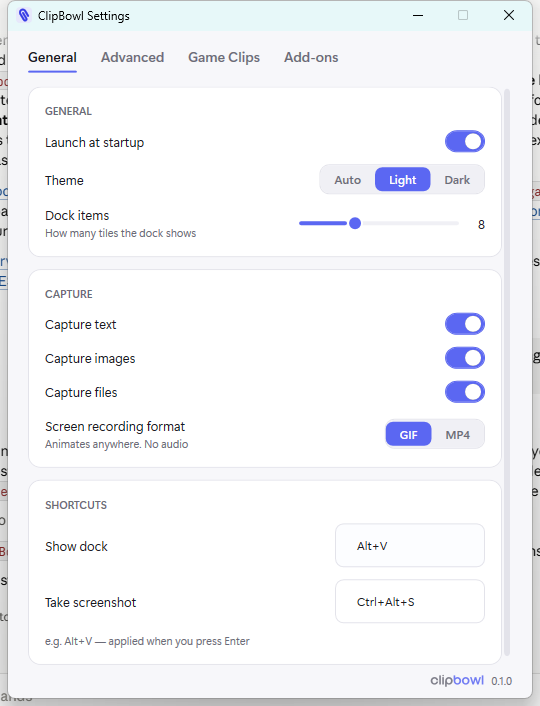
Sensible defaults from the first launch, with the depth you want tucked into clean tabs — history size, capture rules, shortcuts, theme, and optional add-ons.
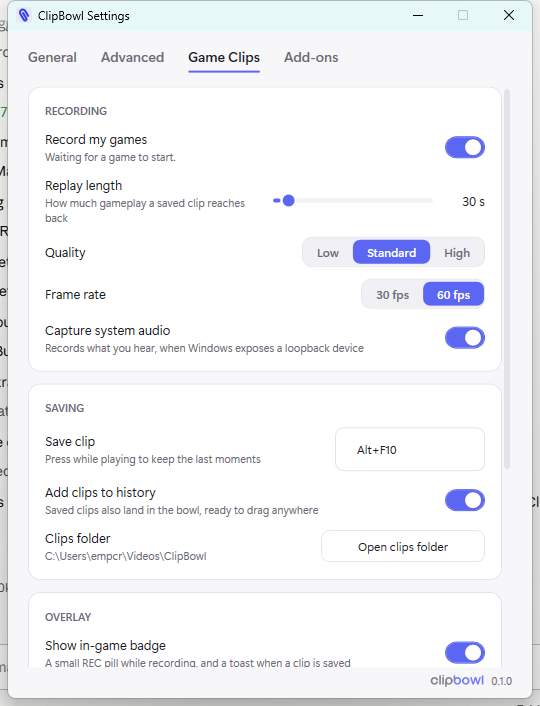
Turn on Game Clips and ClipBowl quietly keeps the last moments of your gameplay in a rolling buffer. Hit the hotkey and it's saved — instant replay, nothing to start or stop. It's an optional download, so ClipBowl stays light for everyone else.
Text, an image, files — ClipBowl catches it automatically and keeps it safe as real files.
The dock slides up with your latest clips, newest first, right where your cursor is.
Drag a clip straight into any app, or click to put it back on the clipboard and Ctrl+V.
ClipBowl for Windows
A tiny download that installs in seconds. No account, no sign-up — just copy, press Alt+V, and go.
Windows may show a SmartScreen prompt for a new app — choose “More info → Run anyway”. A Microsoft Store release is on the way.
Yes. ClipBowl is free to download and use. The optional Game Clips recorder is a free add-on you can install from inside the app.
No. Everything ClipBowl captures is stored locally as real files on your PC. There's no account, no cloud sync, and no telemetry. Content that your password manager marks as sensitive is skipped.
Windows 10 or 11 (64-bit). ClipBowl is a lightweight native app with no third-party dependencies.
It's an optional game recorder with instant replay. Because it bundles a video engine, it's a separate download you install with one click inside ClipBowl — and can remove anytime. Your clips and settings stay when you do.
New apps without an established reputation trigger a SmartScreen prompt. Choose “More info → Run anyway”. A signed Microsoft Store release is planned.